Working with RunTheCloud
Work with RunTheCloud
Understand app behavior overall
RunTheCloud loads a feed of messages and customer-specific message status information when users change filters, search, or interact with the app. The app runs in the Teams client, and collaboration data such as custom views and comments is stored in SharePoint lists in the customer’s Microsoft 365 tenant.
Continuously updated message feed
The message feed is continuously updated as new Microsoft 365, contractual, trust, legal, or regulatory updates are processed by the RunTheCloud team. This process can take between 2 and 14 days, depending on urgency and complexity of the individual message, but also depending on the overall volume of updates that Microsoft is posting. The reason for this lies in the systematic process, by which each message is processed and reviewed by at least 3 different experts across MondayCoffee and Laux Lawyers ensuring a comprehensive and integrated expert input.
Message updates: Timeline or Content
Microsoft very often updates their messages, each one of which is again reviewed by RunTheCloud. There are two types of updates, which are marked as such with an icon:
- Timeline Updates: The timing of the message changed.
- Content Updates: Some part of the message content changed.
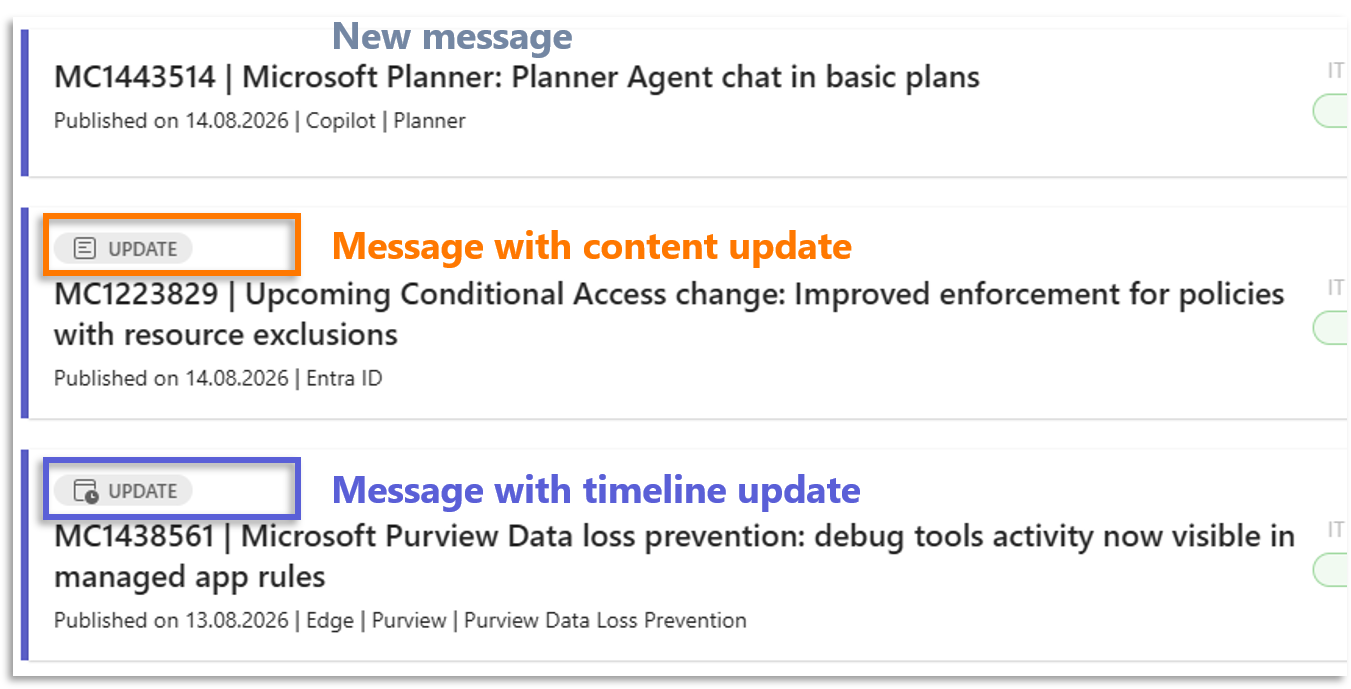
Updates effecting RunTheCloud messages
What happens to messages in the RunTheCloud App when they get an update? Any updated message gets marked with an icon, while the message ID and title remain the same.
When working with messages in the app, an incoming update can change the position of the message, depending on the kind of update. In fact, the behavior differs between content and timeline updates when messages have been worked on the meantime
- Content Updates may contain important additional information, which is why a message, which users in the app had moved into the status “Review” or “Archive” will re-appear in the Inbox. The thinking behind this is that you have to check whether your internal review has to be repeated or not.
- Timeline Updates do not affect the status of messages in this way. Messages in “Review” or “Archive” are simply updated where they are.
Supported languages
RunTheCloud is published in English. German is also provided by means of automatic translation. This language setting can be made in the Key App settings.
Also, individual messages can be translated on the fly via the link in the top section.
Messages view setting: Group specific vs. user specific
This setting requires some explaining and addresses whether you want to encourage team collaboration or individual work for your RunTheCloud message processing.
- Group specific: Every action performed by one user will also affect all other users in the Team. E.g. moving a message to “Review” or “Archived” or setting a message as “read” will also show for the team members accordingly.
- User specific: Every action performed by one user will only affect this user.
We recommend using the Group specific mode as a default to strengthen the collaboration in a team. User specific mode may have its merits in some organizations, in which responsibilities for certain Microsoft 365 apps are clearly assigned to individual users without need to coordinate.
Views: Default and custom
Default view: past 3 months
The default view is over the past 3 months primarily because of performance reasons for the app.
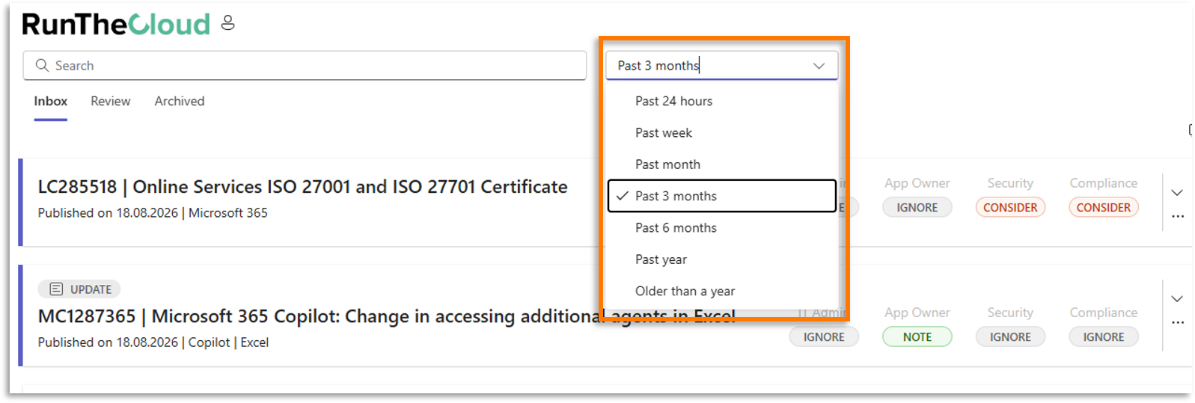
You may also want to narrow down to a shorter period, e.g. “past week” if you review the content on a weekly basis.
Create and edit personal views
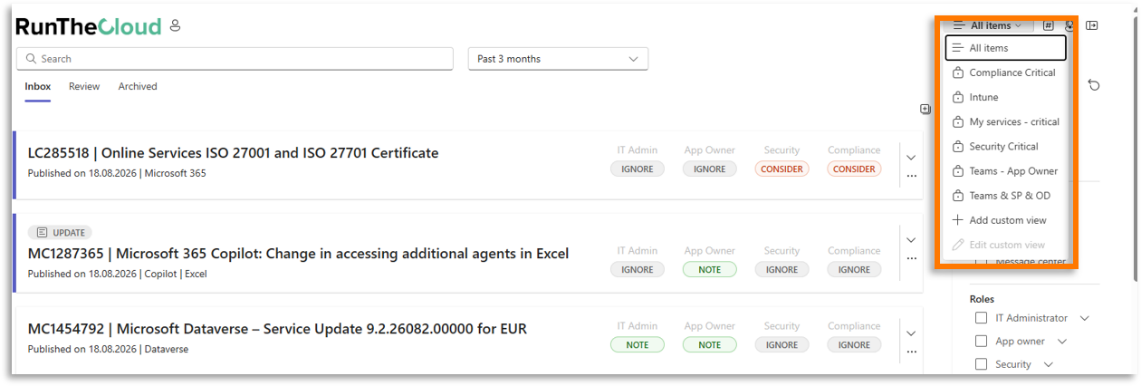
Users can create and adjust views to focus on the services, roles, recommendations, or message statuses most relevant to their responsibilities. These views can be personal or public, i.e. usable for all team members.
At the top right corner in the app, select your view.
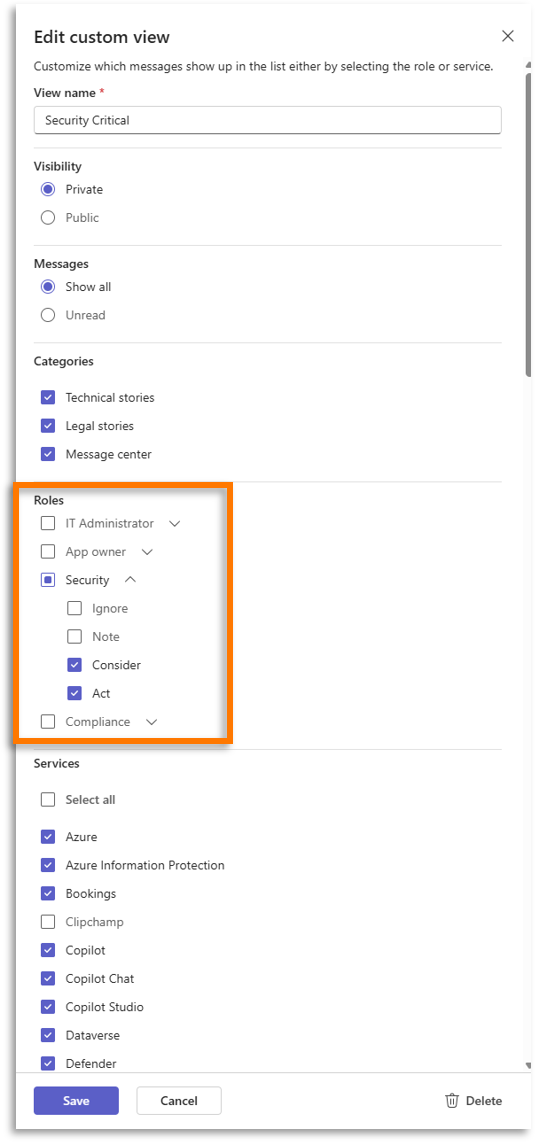
Views can be created and edited by selecting filters on several message parameters. As a security expert, with little time, I may want to concentrate on messages that include a CONSIDER or ACT on all Microsoft 365 apps we have in our tenant. Here is an example for a “Security Critical” view:
Filters and search
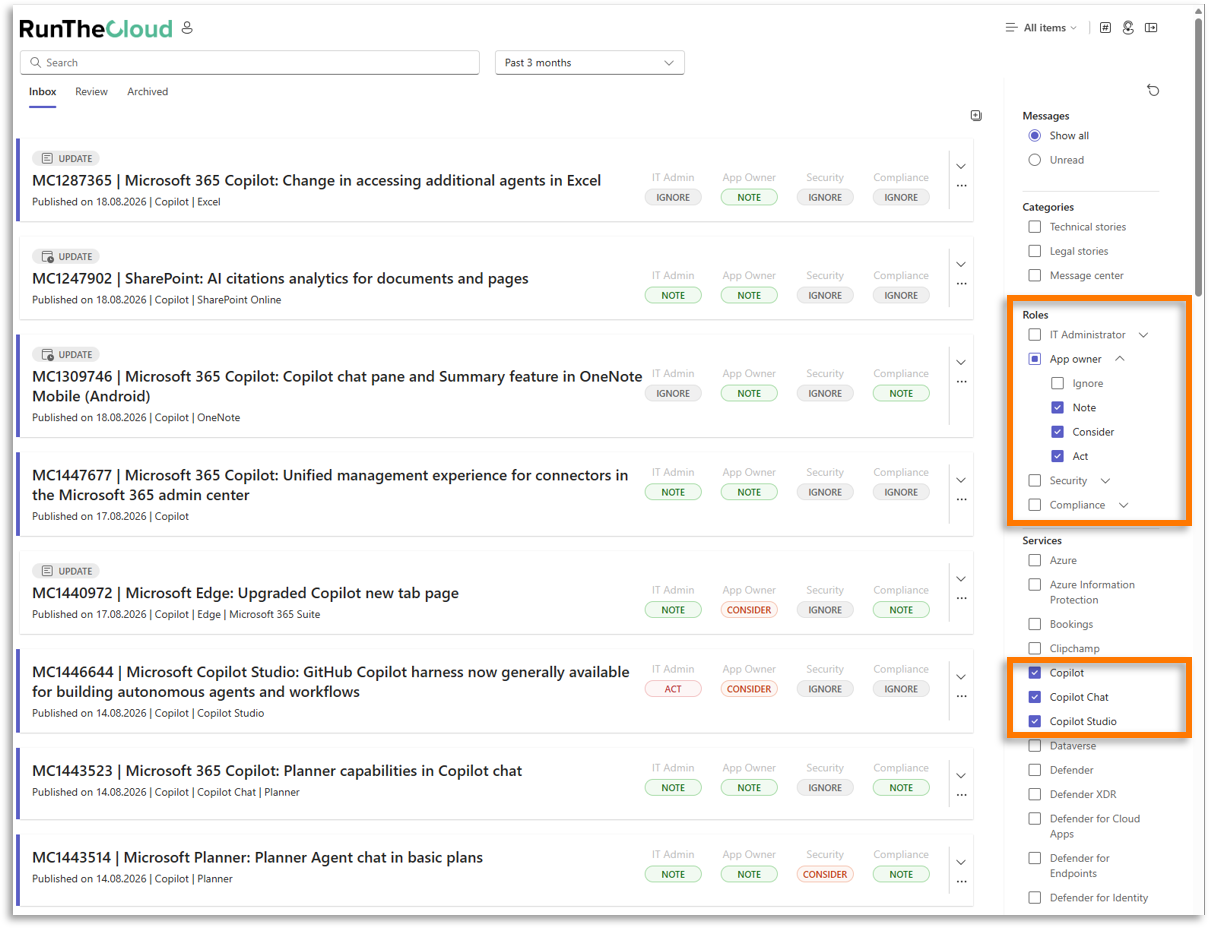
Use filters and search for a more ad-hoc work mode, i.e. when you want to quickly narrow down a large number of messages.
In the following example, as an app owner, I want to get a focused view on all noteworthy Copilot-related messages:
Search for missing messages
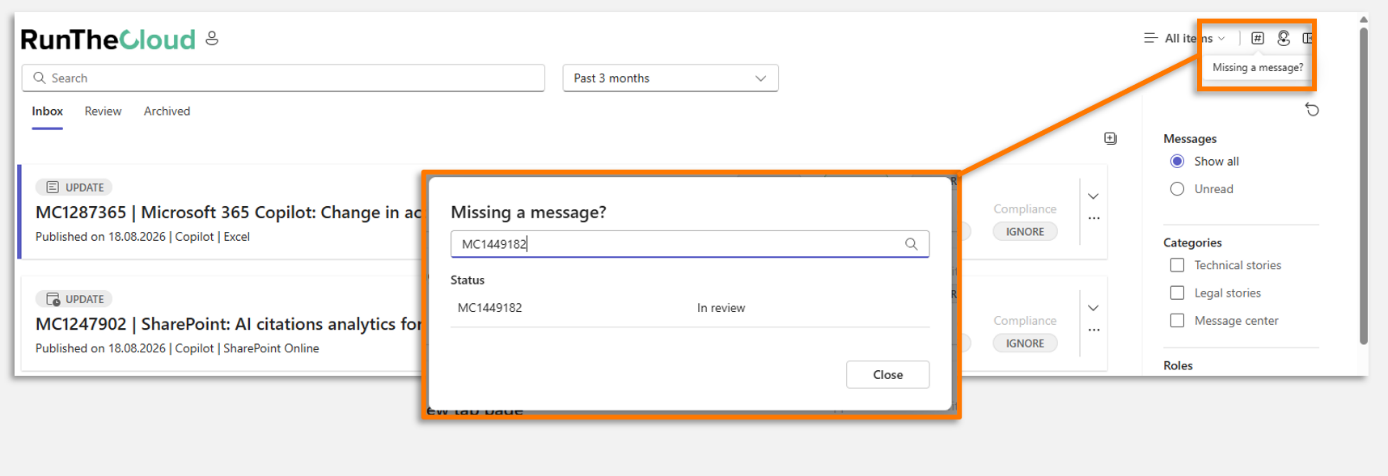
If a message cannot be found, please try first with a less restrictive filter and longer timespan in the past. Still, it is possible that you cannot find a message that has shown up in the message center of your own Microsoft 365 tenant.
Most probably it is because the RunTheCloud team is still working on the message. In very rare cases, there are tenant-specific messages that only the customer’s tenant registers, but experience shows that this is below one in a thousand messages from the message center.
Work at message level
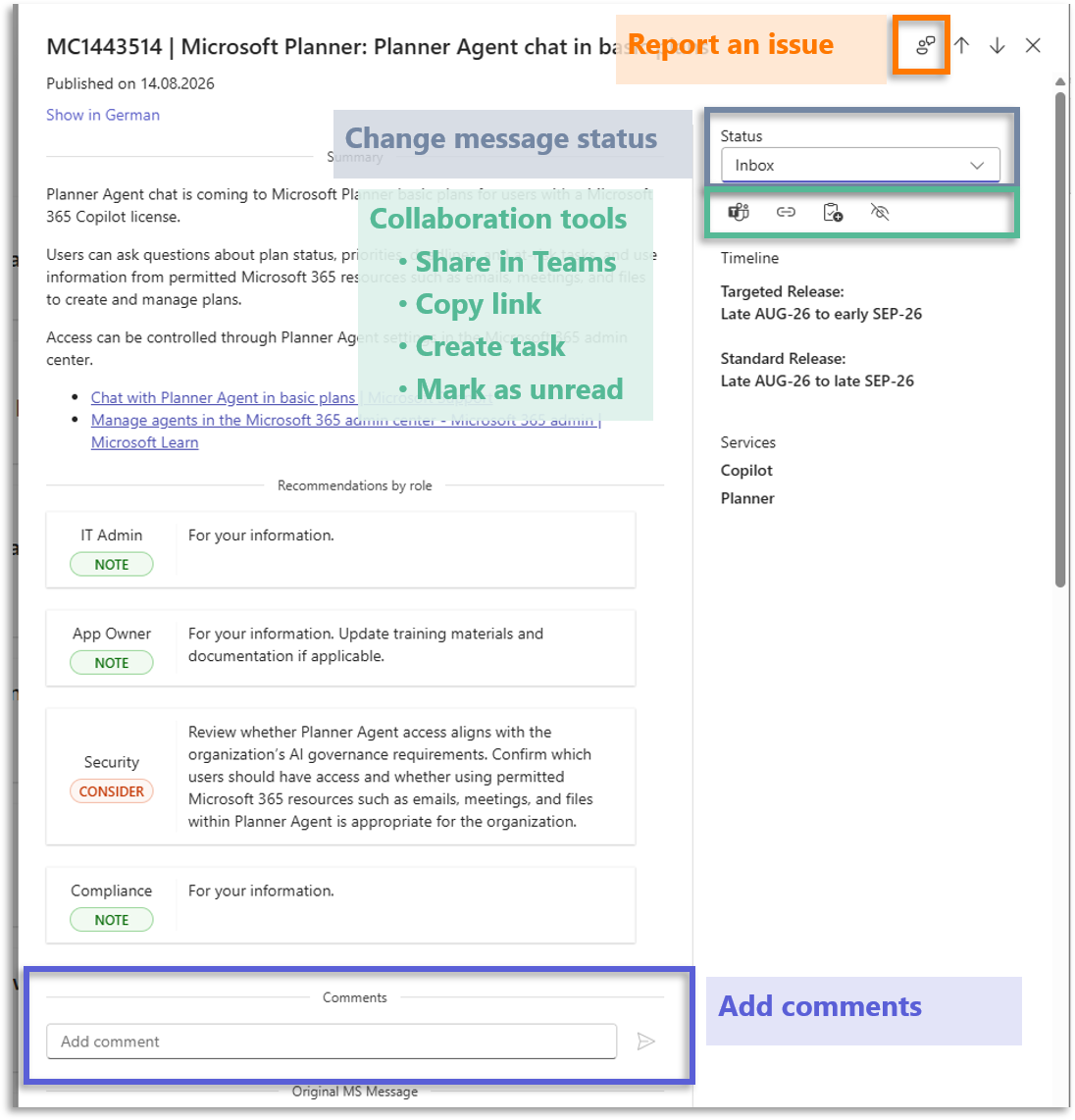
Make use of the features at the individual message level:
Change message status: Inbox, Review, Archived
Message status helps teams manage their internal workflow. Messages can be kept in the inbox, moved into review, or archived once they have been assessed or handled.
Insert Comments
Comments allow teams to document internal findings, decisions, clarifications, or implementation notes directly in relation to a message. Comments are stored in the customer’s Microsoft 365 tenant and visible to all team members.
Share message
Users can share a message with colleagues in Teams to involve the right people and coordinate follow-up work.
Create task
Users can create Planner tasks from RunTheCloud messages to track follow-up actions and assign responsibilities in their normal Microsoft 365 workflow.
Report an issue
Users can report issues or request support through the support option integrated into the app, which opens the user’s email client.